# Packmate
### [EN | [RU](README.md)]
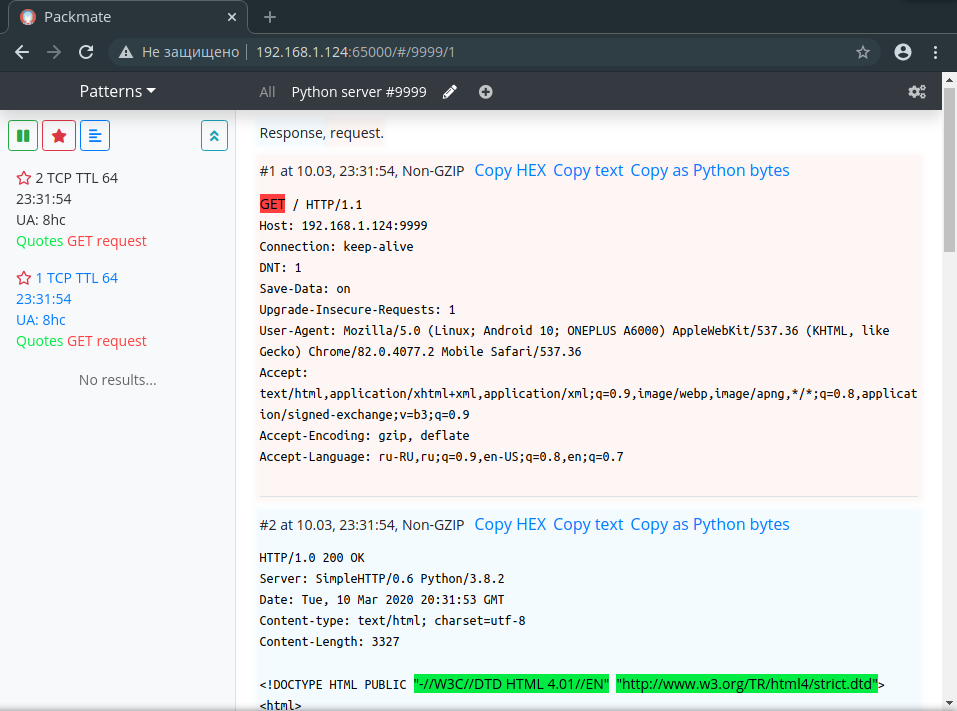
Advanced network traffic flow analyzer for A/D CTFs.
#### Features:
* Supports binary and textual services
* Can highlight found patterns in packets
* Substring
* Regular expression
* Binary substring
* Can make certain streams favorite and show only favorite streams
* Supports several simultaneous services, can show streams for a specific service or pattern
* Allows navigating streams using shortcuts
* Has the option to copy packet content in the required format
* Can concatenate adjacent packets
* Can urldecode text automatically
* Can automatically decode GZIPed HTTP
## Cloning
As this repository contains frontend part as a git submodule, it has to be cloned like this:
```bash
git clone --recurse-submodules https://gitlab.com/packmate/Packmate.git
# Or if you have older git
git clone --recursive https://gitlab.com/packmate/Packmate.git
```
If the repository was already cloned without submodule, just run:
```bash
git pull
git submodule update --init --recursive
```
## Preparation
This program uses Docker and docker-compose.
`packmate-db` will listen to port 65001 at localhost.
Database files do not mount as volume, so upon container recreation, all data will be lost.
### Settings
This program retrieves settings from environment variables,
so it would be convenient to create an env file;
It must be called `.env` and located at the root of the project.
Contents of the file:
```bash
# Interface to capture on
PACKMATE_INTERFACE=wlan0
# Local IP on said interface to tell incoming packets from outgoing
PACKMATE_LOCAL_IP=192.168.1.124
# Username for the web interface
PACKMATE_WEB_LOGIN=SomeUser
# Password for the web interface
PACKMATE_WEB_PASSWORD=SomeSecurePassword
```
### Launch
After filling in env file you can launch the app:
```bash
sudo docker-compose up --build -d
```
If everything went fine, Packmate will be available on port `65000` from any host
### Accessing the web interface
When you open a web interface for the first time, you will be asked for a login and password
you specified in the env file.
After entering the credentials, open the settings by clicking on the cogs
in the top right corner and enter login and password again.
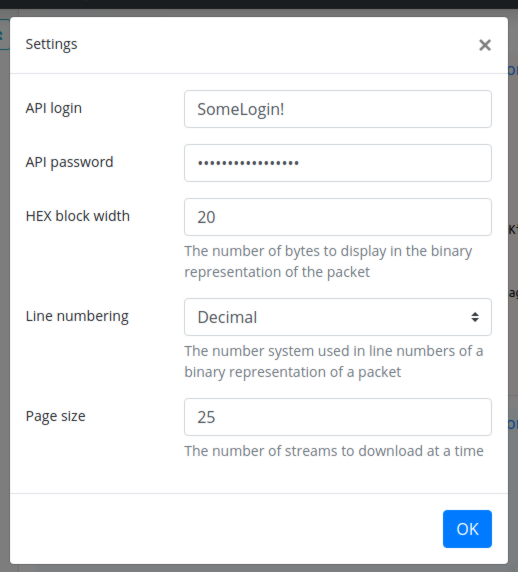
All settings are saved in the local storage and will be
lost only upon changing server IP or port.
## Usage
First of all, you should create game services.
To do that click `+` in the navbar,
then fill in the service name, port, and optimization to perform.
The system will start automatically capture streams and show them in a sidebar.
Click at a stream to view a list of packets;
you can click a button in the sidebar to switch between binary and text views.
For simple monitoring of flags, there is a system of patterns.
To create a pattern open `Patterns` dropdown menu, press `+`, then
specify the type of pattern, the pattern itself, highlight color and other things.
### Shortcuts
To quickly navigate streams you can use the following shortcuts:
* `Ctrl+Up` -- go to next stream
* `Ctrl+Down` -- go to previous stream
* `Ctrl+Home` -- go to latest stream
* `Ctrl+End` -- go to first stream
*desu~*